
Every Internet Entrepreneur Must Complete
A Set Of Activities To Run A Successful Business.
The Smart Ones Use S.M.A.R.T. Productivity To
Get Them Done Easier, Faster and Better.
A Set Of Activities To Run A Successful Business.
The Smart Ones Use S.M.A.R.T. Productivity To
Get Them Done Easier, Faster and Better.
"If You Own An Internet-Based Business Or Are In The Process Of Starting One,
Then This Is The Best $4.97 You Will Ever Spend. Period. A Rare 5-Star Rating!"
Then This Is The Best $4.97 You Will Ever Spend. Period. A Rare 5-Star Rating!"
Hi there,
Take just a moment and look at your schedule for the next 24 hours. What do you see? What about the remainder of this week? The entire month?
If you're like most people who are running businesses online, there are three words that probably describe the way your schedule looks...
BUSY. BUSY. BUSY.
Sure, we could probably add the words "overwhelming", "stressful" and "tiring" to the list but these are really just extensions to the core problem: you've got a lot to do.
Your "to do" list probably includes a lot of activities in common with other internet entrepreneurs. Things like...
- Answering emails
- Writing content
- Generating traffic
- Building a list
- Creating products
- Supporting customers
- Networking
- Social media tasks
- Researching ideas
- Testing and tracking
- Planning strategy
- Managing team
- Outsourcing projects
- Much more
That's just the beginning, right? These are the basics of running an internet business. Even if you're keeping it simple, there are still a lot of parts to juggle from day to day and from week to week.
Every internet entrepreneur, regardless of the "business", has a list of activities that must be completed in order to successfully run that business. Your schedule may look slightly different than mine, but the one thing we have in common is the fact that our businesses require action on our part.
THEY DON'T SIMPLY RUN THEMSELVES.
If you are successful - or will become successful - there are things that must get done. In fact, the more successful you, the more things there are that must get done!
That just makes sense, right?
It doesn't matter 'who' you are, or 'how busy' you are, we'd all like to have more time to do the things we want to do!
Whether it's fishing or golf, family time or travelling, reading or watching movies, or any of countless other things of interest and importance to us, we'd rather get the work over with and the results rolling in so we can get on to the important things.
You Can't Get More Time In Your Day,
But You Can Get More Leftover Time!
But You Can Get More Leftover Time!
Someone once told me, "You can't get more time in your day."
Their point was all you get is 24 hours. That's the same for everyone.
You can't buy it from the store.
You can't borrow it from others.
You can't replenish it once it's gone.
Each of us gets 24 hours each day and that's it. Nothing more. Time is no respector of persons. Rich or poor, beautiful or plain, talented or limited, resourceful or helpless ... we all have the same "sand in the hourglass".
While it's true that you can't get more time in your day...
... YOU CAN GET MORE LEFTOVER TIME IN YOUR DAY!
Every single one of us who is 'too busy' can make some simple changes to ensure there is time left over each day for the important things.
Sounds simple enough, right?
But, how can we do it?
We do it by being more productive. Without sacrificing quality, we learn to get things done faster. In fact, when it's done right, we can get it done BETTER and EASIER along with FASTER. I've been doing this most of my life.
Example #1: When I took my first job as a paperboy I was always the first one to arrive at the newsagents in the morning, meaning that I was able to pick, pack and deliver three-times as many morning newspapers than any of my friends. At 10 years old I was already learning to master productivity... And is wasn't like my schoolwork was suffering... I never overslept and got all my work done before the school day started. My parents had a simple rule: "When school's out and your chores are done... you can spend the rest of the day doing whatever else you please." Read, Write, Play... Whatever. (Leaving me with Leftover time, that's what I got every single day.)
Example #2: When I was 20 years old I set up a mobile DJ-ing business, which quickly grew to become one of the biggest in the area. I quickly learnt that I could only be in one place at a time so I started outsourcing. I employed a lovely lady to run the office, answer enquiries, confirming bookings with clients and of course manage a growing database of sub-contracted DJs. We provided entertainment at dozens of events every week, however here's the really cool part: I usually only 'worked' as a DJ for approximately 2 hours each evening... (Giving me the rest of the week to do exactly as I pleased thanks to leftover time. Paid leftover time.)
Example #3: In September 2004, at 30 years old, I started Nick-James.com, my first online membership site. I earned a six-figure income from the monthly subscription payments during the first full year the website was online. That business took me just 1 day a week to operate. My online business activities have been growing into a global brand ever since. Here's the thing: Despite the fact that I have thousands of customers, thousands of affiliates and JV partners, I've created hundreds of products, published dozens of websites... Prospect and customer lists and many other parts ... and despite the fact that my business brings in sales 24/7... I rarely work more than 3 hours a day. In fact, many days I work less than that. (Meaning that even today I can still enjoy leftover time.... making money around the clock on full autopilot).

I don't say any of that to brag...
I say all of this to illustrate the fact that I know what I'm talking about when it comes to productivity. In fact, well known internet marketer Matt Bacak dubbed me, "Mr. Efficiency" when I won Internet Marketer Of The Year' recently. That day I was photographed with nearly 200 world class internet marketers... Who mavelled at how I could pull it all off with such seeming ease (while they are working overtime to run their businesses).
Here's the thing:
YOU'RE GOING TO DO THE THINGS ON YOUR SCHEDULE ANYWAY,
WHY NOT GET THEM DONE EASIER, BETTER AND FASTER?
YOU'RE REQUIRED TO COMPLETE CERTAIN ACTIVITIES TO RUN YOUR BUSINESS, SO WHY NOT GET THEM DONE WITH PLENTY OF LEFTOVER TIME TO DO THE THINGS THAT YOU REALLY WANT TO DO WITH YOUR LIFE?
That's where I can help you.
What I've been successfully doing all of my life can be turned over to you for application to your own business.
I can teach you how to be productive. I can share all of my insights and "tricks of the trade" that have helped me to be extremely productive when it comes to getting things done.
Let Me Show You World-Class Shortcuts For
Turning Your List From "To Do" Into "To Done" 🙂
Turning Your List From "To Do" Into "To Done" 🙂
No one wants to work harder than they have to.
No one wants to sacrifice quality when they don't need to.
No one wants to spend extra time running their business if they don't have to.
To the contrary, we'd all like less headaches and stress, and more "leftover" time that we can devote to "whatever".
That's why I created SMART Productivity™. I want to teach you how to..
- Make tasks easier,
- Get better results, and
- Finish quicker.
That's my objective. And, best of all, I want to do it without forcing you to spend a fortune on some mega course, join some expensive coaching program or buy some outlandish software program.
Does that sound good?
Then, check this out...
Introducing...
SMART Productivity™
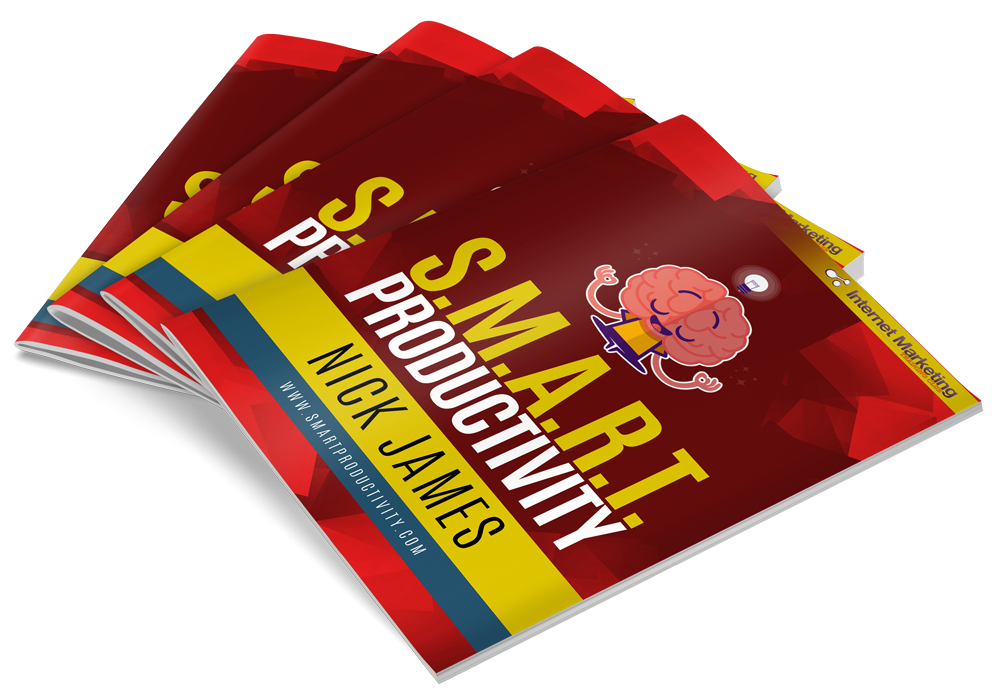
When I was a Paperboy, what was my secret? What about during my days at spent DJing, why was I able to excel? How am I able to run a successful business in 1/3 of the time others do?
Here's the key: I learned to work S.M.A.R.T.™. That is, I identified five key practices that, when handled correctly, resulted in a superior outcome.
Those practices are...
S - SUCCESS
M - MOTIVATION
A - ACHIEVEMENT
R - REASONING
T - TIME management
Sure, when I was 10 years old, I didn't slap an acronym on what I was doing, but I realized even then that certain duplicatable practices allowed me to see faster and better results than my peers.
At age 20, I still had not "written down" these things into any kind of applicable system. But, when I launched my first internet business and began growing it, everything finally "clicked".
I began strategically and repeatedly using these practices to grow my business at an astounding rate while minimizing my workload to a level that dazzled most of my peers. I've shared some of these things in my $9,997.00 a year Mastermind, but never have I shared them all. And certainly not at less than five dollars!
For the first time ever, I'll be pulling back the curtains to show the world exactly how you can be so much more productive in running a successful business. That's what SMART Productivity™ is all about...
HOW TO WORK S.M.A.R.T.
Now I know you will have heard about working 'smarter' not harder before... But here is what it means in today's context...
Let me introduce you to the five SMART Productivity™ practices and what each issue of SMART Productivity™ is devoted to sharing with you. These are the key area of working "smart" in your business from this day onwards:
-
1
SUCCESS
The accomplishment of something desired, planned or attempted - that's what "success" is. How do some people find it while it is so elusive to others? Success is one part science and one part art. It is a skill to be acquired and knowledge to be learned. It is the combination of ideas and practices and effort and opportunity. What you'll find is that at the root of all success there are similarities that can be used by anyone to increase their own level of accomplishment. Tony Robbins once said, "Success leaves clues." My aim is to share the "clues" that I have discovered with you.
-
2
MOTIVATION
Perhaps this sounds unimportant or even unnecessary to you. Some might think, "I'm already motivated - I really want to do XYZ." I often think that myself until I hear a rousing speech, watch an inspiring scene from a movie, listen to an empowering song, hear a friend's testimony or even read a powerful quote. There are certain ways to trigger desires inside us that spur us on to greater action. Whether you're facing a deadline, dealing with procrastination, hitting a plateau, suffering from the "same old, same old", or working through a problem, motivation can not only help you get past the obstacle, but it can spur you on to even greater productivity by getting you "fired up".
-
3
ACHIEVEMENT
The ability to produce measurable results doesn't come easily to many people. Another of our core practices is designed with nothing but the end outcome in mind - helping you make progress and get things completed. Perhaps there is nothing more satisfying than to see activities on your list checked off as finalized. You will learn my proven techniques for increasing the amount of work you get done without sacrificing quality and without working "harder". In fact, you'll do just the opposite ... work "easier".
-
4
REASONING
It's important that you learn to think in a logical manner when it comes to running your business. That's what "reasoning" is - developing and improving a strategy for every part of your business. It's not only critical to identify and plan out a set of organized action steps, but also to create a balanced approach to business-building so all important parts are given adequate attention. This is what creates a stable and secure business, as well as an implementable schedule of activities.
-
5
TIME Management
What good does it do you to know WHAT to do and even HOW to do it if you aren't effective in actually GETTING IT DONE?! It's important that you don't overspend time on scheduled activities, that you don't allow things to get you "stuck", that you learn how to properly deal with "delays", that you get the most high-quality things done possible in each day without stressing yourself out. That's what our core time management strategies will teach you. How to master your schedule instead of it mastering you.
Each issue of SMART Productivity™ is jam-packed with the "best practices" for working SMART. No fluff. No filler. And not just "ideas", but very practical things you can do immediately to increase your personal productivity.
These are the five "practices" - five key areas - that you'll learn about... Now, let's talk about some specific things you'll learn...
What you'll find in SMART Productivity™ is take you "behind the scenes" and let you see how I personally run my own business. None of what I share with you is "theory" or "borrowed from somewhere else". These are all things that I actually do myself.
What if you could pick my brain and ask me about that very thing? What if you could say, "Nick, tell me about __________ ..."? What topic would you ask about when it comes to boosting your producitivity so you can get things done easier, better and faster than ever?
I bet I already got ya covered!
See If You Can Spot A Single Thing Missing
That Would Help You Get Things Done...
That Would Help You Get Things Done...
In fact I challenge you to spot a single thing missing that would help you to get more things done... A SMART Productivity™ membership means you'll learn everything I know about effectively and successfully running an internet business.
Here are just some of the things you'll learn how to master when you join SMART Productivity™ today...
- Creativity
- Goal-setting
- Organization
- Time management
- Automation
- Habits
- Outsourcing
- Mindset
- Strategy
- Research
- Growth
- Motivation
- Success
- Focus
- Multi-tasking
- Efficiency
- Balance
- Simplification
- Management
- De-stress
- Communication
- Analysis
- Prioritization
- Strengths/weaknesses
- Implementation
- Delegating
- Team-Building
- Confidence
Can you see anything missing? There is no information withheld - I'm being completely transparent and sharing everything I know!
Let's take a look at what you'll get immediately when when you join today...
HERE'S A SNEAK PEEK INTO YOUR YOUR FIRST ISSUE...
Maybe you're thinking, "this all sounds great - but I don't want to have to spend my leftover time reading yet another long ebook". Don't worry, I wouldn't do that to you! 🙂
Each issue of SMART Productivity™ is 10-15 pages in length. So be rest assured, each issue is a quick-read with multiple short and punchy articles.
Three things you need to know about each issue...
- It's a quick read. At 10-15 pages you can read it in less than half an hour with ZERO fluff.
- It's action-oriented. Every "big idea" has applicable things you can DO to apply it.
- It's measurable. You will see results from every issue or you won't pay for it.
When you join SMART Productivity™ below, you'll get instant access to the membership area to download your first issue immediately. Here are the five featured articles included in your introductory download...
- 3 Ways To Defeat Time-Draining Distractions - In this article I'll show you how to create extra time every week by minimizing the biggest distractions you face, no matter how tempting those interruptions may be.
- The 4-Step System For Reaching Your Potential - This easy-to-apply system expains exactly how to get maximum results and attain your business goals, while "firing you up " to soar
- My #1 Productivity Strategy Of All-Time - This one is a real game-changer, I use this regularly to create $97 offers in one evening. You'll learn what I consider to be the best way to get a large amount of things done very quickly.
- The Perfect P.L.A.N.™ For Getting Things Done - I've been doing this for over 20 years as a full-time information publisher and it's the sole reason I'm able to work just a couple of hours each day.
- How To A.D.D.™ 3-5 Hours Of Leftover Time Each Week - These three shortcuts can trim off time from even the busiest of schedules (that you can use for more important things in life).
As you can see, we get things kicked off with a bang!
Every issue of SMART Productivity™ is filled with "nothing but meat" in my well-known style of making things simple and easy-to-use.
And listen... I stand by my promise... If you don't see real results from using any issue, simply let me know and you won't pay for that issue!
There Is Not An Information Publisher Or Internet Entrepreneur On The Face Of The Earth Who Should Not Join Today...
No one wants to work harder than they have to. No one wants to sacrifice quality when they don't have to. No one wants to spend extra time running their business when they don't have to.
It doesn't matter what niche market you're in, whether you sell info products, software or help others with their online marketing, there isn't a genuine reason you can give me that would justify passing up starting your SMART Productivity™ membership today. The price is insanely affordable. The content is rock-solid. The subject matter applies to everyone.
Seriously, there is not an entrepreneur on the face of the earth who should pass on this package. Every one of them should join immediately. You may not be interested in certain business products that don't line up with your model. For example, you do not need to buy a course about "product creation" if you're into "affiliate marketing". You do not need to buy a course on "blogging" if you don't own a blog. And so forth.
HOWEVER... EVERYONE NEEDS MORE LEFTOVER TIME!
What I'm offering is universal. It applies to every business owner. Unless you want to waste time, do things the hard way and get less than maximum results, there is simply no reason to turn this down.
In fact, I want to ask you a simple question that should convince even the biggest skeptic out there...
How Much Do You Make Per Hour?
It doesn't matter if you are doing this full-time or part-time, as a main source of business or a secondary source of business, for years or just starting out -- how much money do you make per hour?
- Do you make $7 per hour?
- Do you make $15 per hour?
- Do you make $50 per hour?
- Do you make $100 per hour?
- Do you make $500 per hour?
What's the number?
Say it out loud. If anyone asks why you're talking to yourself, tell them you're answering me. 🙂 Seriously, go ahead and say it. "I make ________ per hour."
IS IT MORE THAN $4.97 PER HOUR?
If you make more than five bucks an hour, then you absolutely should grab your SMART Productivity™ membership right now.
Why?
Because I guarantee you my strategies will save you well over an hour of your time each week!
Think about how much of a "no-brainer" this is. If the SMART Productivity™ membership saves you JUST ONE HOUR PER WEEK... Then it will more than pay for itself. What if it saves you two hours per week? What if it saves you five hours per week? Or twenty-five hours?
How much would it be worth to you to have twenty-five extra "leftover" hours every week to spend however you please? Or even just 8 hours - a full workday that you can use for whatever you want?
Isn't your time worth $4.97, regardless of how many extra "leftover" hours you get from the purchase? Like we talked about earlier, once your time is gone you can't get it back. It's gone forever.
HOW WOULD YOU RATHER SPEND YOUR TIME -
ON WORK OR PLEASURE?
That's what this decision comes down to. Would you rather create "leftover" hours that you can spend on pleasure, or would you rather keep doing things like you are? Is it worth a mere $4.97/week to create "leftover" hours that you can use "to do the things you want to do"?
It's the closest thing you'll ever find to buying "time in a bottle".
If you want to...
- Make tasks easier,
- Get better results, and
- Finish quicker.
... Then lock in your SMART Productivity™ membership for just $4.97 per week (for just 7 weeks) right now.
Listen, there are no "bonuses", no "deadlines", no "limits" and no "urgency" ploys here to twist your arm and convince you to buy. The price isn't going up tomorrow. You're not going to miss out on some fast action bonus if you delay. No countdown timers are showing how many units or minutes remain until you've waited too late.
Just the reality that time waits for no one... You get 24 hours today. Nothing more. Wouldn't it be nice to have as much "leftover" time as possible?
Here's what to do next...
Click the button below right now to enrol and get immediate access to the SMART Productivity™ membership area. Your membership will be immediately set up and you'll be able to download the first part of SMART Productivity™ immediately (even if it's 2am in the morning where you are right now).
Kindest

Nick James
P.S. You simply WILL NOT find a better "bang for your buck" than the SMART Productivity™ membership when it comes to learning how to get more done in less time... and doing it Easier, Faster and Better than before.
PPS. Finally, try the first issue of SMART Productivity™ today and if you're not convinced that it's worth every cent (and much much more)... Then simply email me and we'll refund you immediately, no questions asked. That's more than a guarantee... that's a promise.